Appearance
Open, inspect, and annotate a slide
This guide takes you from the Microscope start screen to a saved annotation on a real slide. It uses the bundled CMU-1-Small-Region.svs example, a public CC0 sample included for research evaluation. The browser viewer works without Python, an account, or a project server.
Before you start
Slide viewing requires WebAssembly with shared memory and threads, module Web Workers, WebGL 2, image bitmap processing, and ordinary local file selection. The page must be cross-origin isolated. Folder-based saving and projects require the File System Access directory picker; without it, open local slides and use annotation Import/Export. Python is optional. Browser names and versions are not guarantees: graphics drivers, settings, embedding, and device resources also matter. Touch-only devices do not support precision geometry editing.
Opening and rendering slides is browser-native. Microscope reads the chosen File locally with OpenSlide WebAssembly. It does not upload the original slide for viewing. Local Python is optional and is needed only for executable visual workflows.
Browser compatibility and diagnostics
Microscope checks essential capabilities before the introduction. A blocking screen offers retry, documentation and copyable technical details. The report stays local and excludes slide names, paths, metadata, project contents and credentials. Optional limitations appear in a dismissible notice. Local storage retains the required first-visit consent, preferences and workflow drafts; if unavailable before consent is recorded, the current consent flow cannot be completed; if consent is already readable, viewing can continue with a warning that changes may not persist. IndexedDB remembers folder handles and contribution progress; if unavailable, those features cannot persist. Folder projects and sidecars still require folder access. A successful export prepares a download, not a verified disk save.
| Code | Meaning and recovery |
|---|---|
ISOLATION_REQUIRED | The page is not cross-origin isolated. Open it directly over HTTPS (or localhost); the host must supply the headers below. An embedding context or browser settings can also prevent isolation. |
SHARED_MEMORY_UNAVAILABLE, WASM_UNAVAILABLE, WORKER_UNAVAILABLE | The decoder needs shared WebAssembly memory and workers. Check isolation, browser settings and worker/asset loading. |
WEBGL2_UNAVAILABLE | WebGL 2 context creation failed. Check graphics acceleration and resource availability. |
FILE_SELECTION_UNAVAILABLE, IMAGE_BITMAP_UNAVAILABLE | Local file or image processing APIs are unavailable. Check browser settings. |
RENDERER_INIT_FAILED | The slide renderer failed to initialize. Check graphics acceleration and resource availability, then retry and reopen the slide. |
DECODER_INIT_FAILED | The decoder assets or workers failed to initialize. Check asset loading and memory, then retry. This differs from an unsupported or corrupt slide. |
DIRECTORY_UNAVAILABLE | Folder projects and sidecar saving are unavailable. Open a file normally and export/import annotations. |
LOCAL_STORAGE_UNAVAILABLE | Consent or preferences cannot be recorded. Allow local storage for this site; first-visit consent must be saved to enter. |
INDEXEDDB_UNAVAILABLE | Remembered folders and contribution progress cannot persist. Allow browser storage or use a temporary session. |
The Vite development and preview servers and the repository’s Cloudflare Pages public/_headers specify Cross-Origin-Opener-Policy: same-origin and Cross-Origin-Embedder-Policy: require-corp for all paths. Deploy the file with the static assets; ensure WASM and worker responses are served correctly and any cross-origin dependencies permit embedding via CORS or CORP. The policies alone cannot guarantee isolation inside an incompatible embedding context. Fix deployment headers rather than asking users to change browsers when the host is misconfigured.
For developers: update src/lib/browser-capabilities.ts when the actual decoder or renderer requirements change; keep essential and optional checks distinct, lightweight, and independent of browser identity. The decoder initializes on first slide open; initialization failures use its existing lifecycle. Add focused tests and keep diagnostic output free of user data. A preflight cannot establish support for every slide, GPU, browser version, or future resource condition.
Open the example or your own WSI
- Open Microscope in a browser. Complete the required first-visit disclosure to enter the viewer.
- On the empty workspace, select Explore the example slide to load the bundled CMU sample. For your own image, select Open slide in the header (or Open local slide in the workspace) and choose one file.
- Wait for the
Opening slidemessage to finish. The slide name appears in the header and the Slide inspector tab shows its dimensions, pyramid levels, resolution metadata, vendor, and objective metadata when available.
The file picker accepts one file, so choose a single-file WSI. The bundled OpenSlide WebAssembly reader documents these formats as supported single files: Aperio SVS (.svs), tiled TIFF (.tiff), Hamamatsu NDPI (.ndpi), brightfield Leica SCN (.scn), and Philips TIFF (.tiff). Support still depends on the file's internal encoding. The current picker cannot gather the multiple files required by DICOM WSI, Hamamatsu VMS, Mirax MRXS, or Trestle TIF. OpenSlide lists fluorescence-only SCN, VSI, BIF, CZI, and ZVI as unsupported in this browser build; SVSLIDE has not been tested. When a file fails, use the complete error in the viewer and verify it with the source reader before treating the extension as supported.
Navigate the slide
Use the bottom-right controls to select Zoom in, Zoom out, or Fit slide. The percentage beside them reports the current view scale. Use the mouse wheel/trackpad over the slide to zoom and drag to move the viewport. The small overview map shows the current viewport position; click it to center the main view at that location.
The left tool rail has Select ROI (V), Pan slide (H), Draw rectangle (R), Draw polygon (P), and Draw freehand polygon (F). V, H, R, P, and F select those tools when focus is not in a text field. Geometry tools require a fine pointer. Use Undo and Redo in the rail or Ctrl/⌘ Z and Ctrl/⌘ Shift Z.
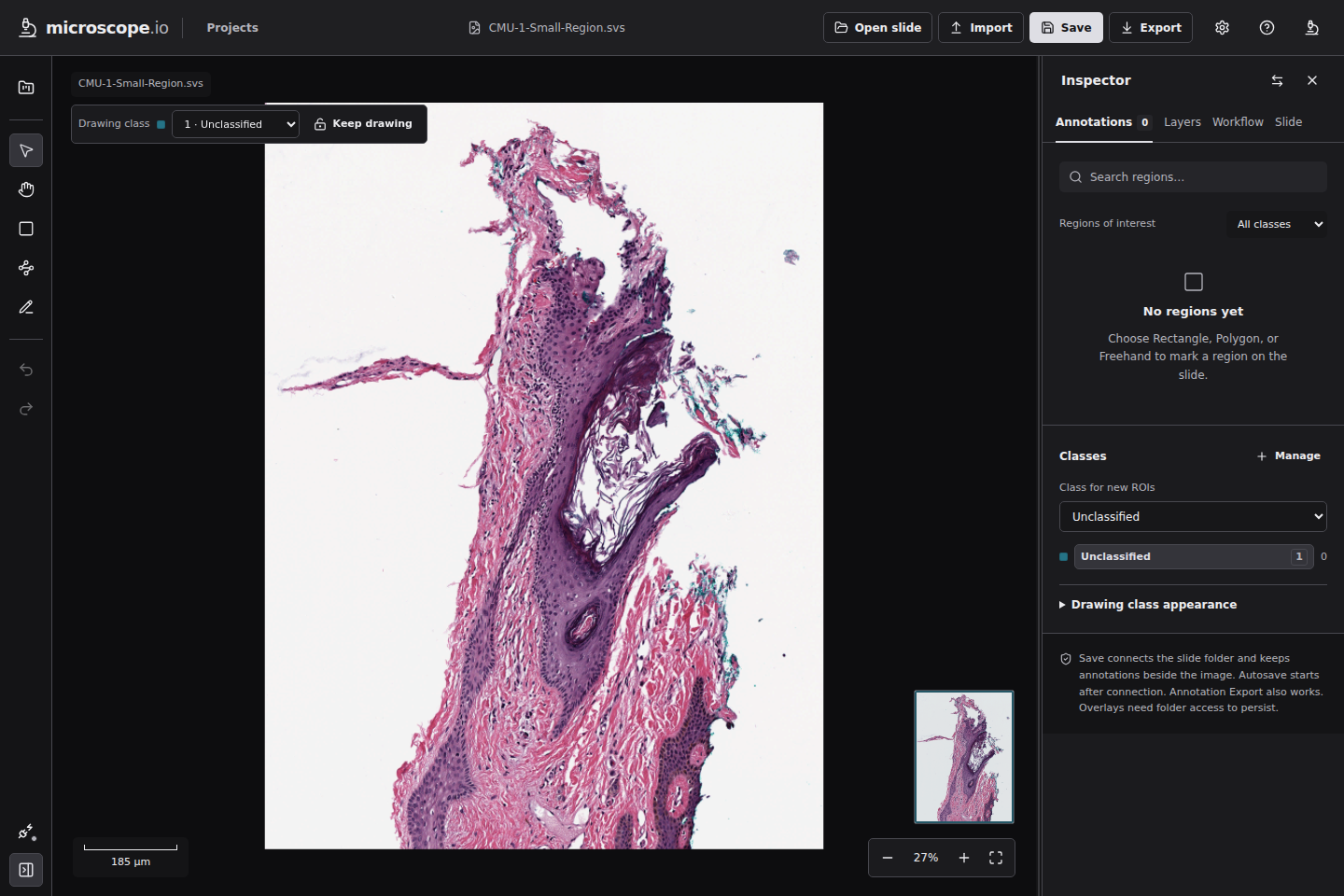
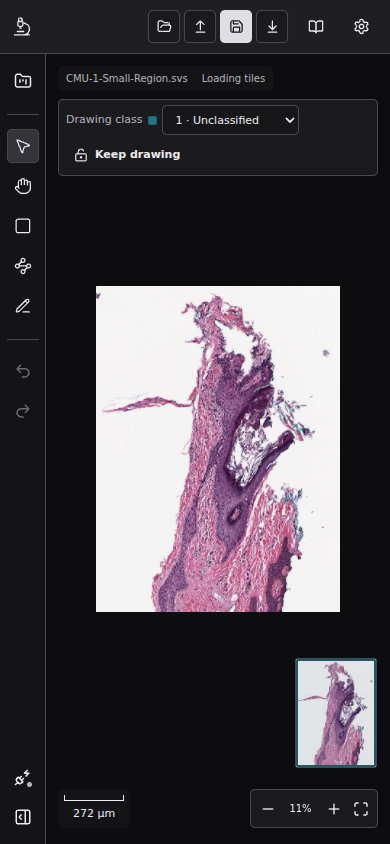
On a narrow screen the inspector can be opened from the bottom of the tool rail; its tabs scroll horizontally while the slide remains visible. If no slide is open, the Slide tab explains that metadata appears after opening a local file and offers Open local slide.
Create and edit an annotation
- Select Draw rectangle (R), then click one corner and click the opposite corner. A polygon can be drawn by clicking its vertices and double-clicking the last point, pressing Enter, or selecting Finish polygon. For a freehand polygon, drag around the boundary and release.
- The new item appears under Regions of interest in the Annotations tab. Select it to edit its name, class, visibility, style, or metadata. The class selector sets the class for the next ROI. Keep drawing leaves the active drawing tool and class selected after each new region.
- Select Edit shape, drag a vertex, then choose Apply edit. Choose Cancel to abandon the vertex edit. To move the complete slide view, switch to Pan slide.
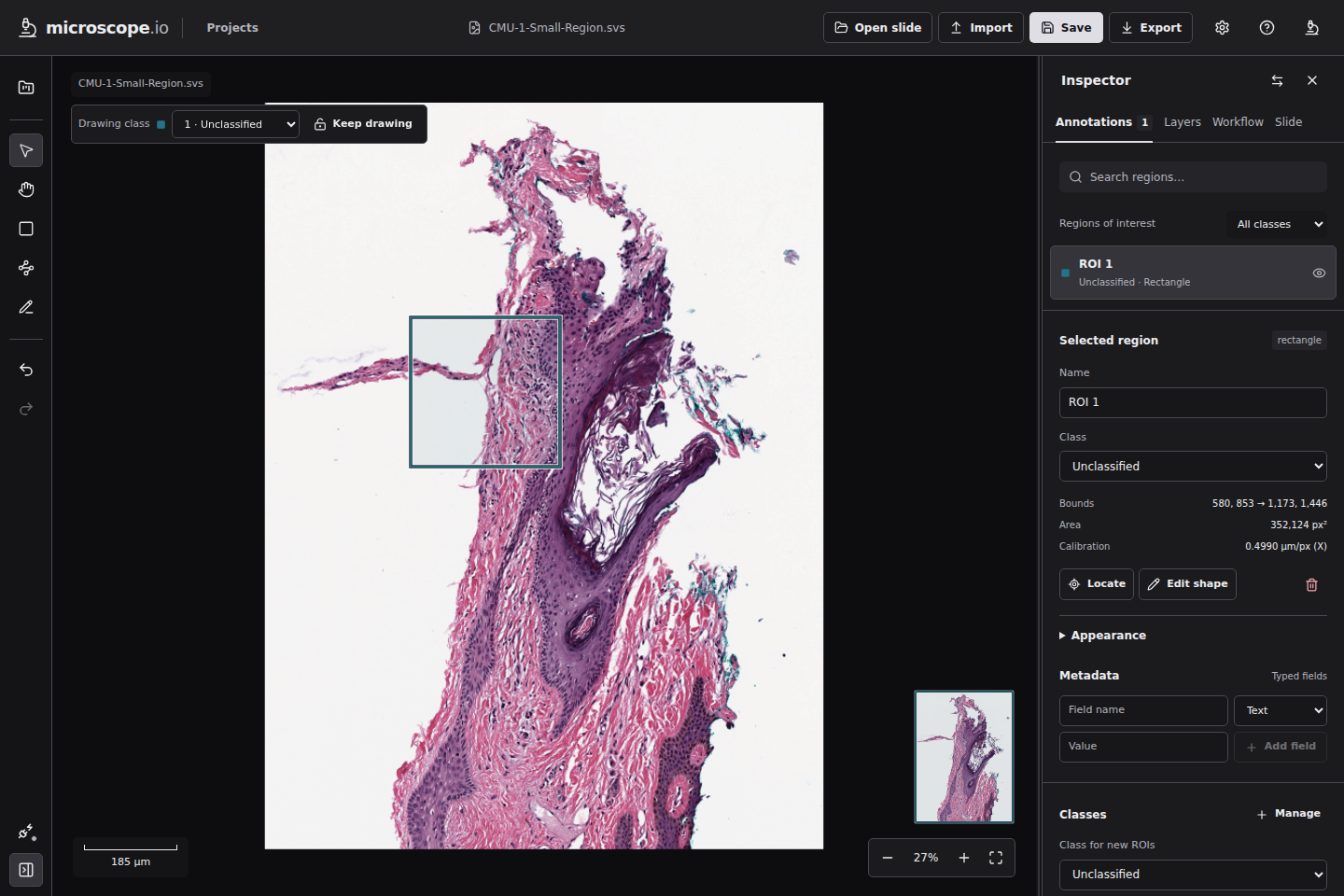
When there are no annotations, the Annotations tab offers Draw a rectangle when a slide is open and a mouse or trackpad is available; on a touch-only device, use a mouse or trackpad, or import annotations. With no slide open, the empty state offers Open local slide. If filters hide existing regions, use Clear filters to restore the list.
ROI coordinates are level-0 slide pixels, with origin at the top left, X increasing right, and Y increasing down. If the slide has measured MPP, the inspector also reports calibration. Objective-power text is display metadata only and is never used to guess a physical scale.
Layers and overlays
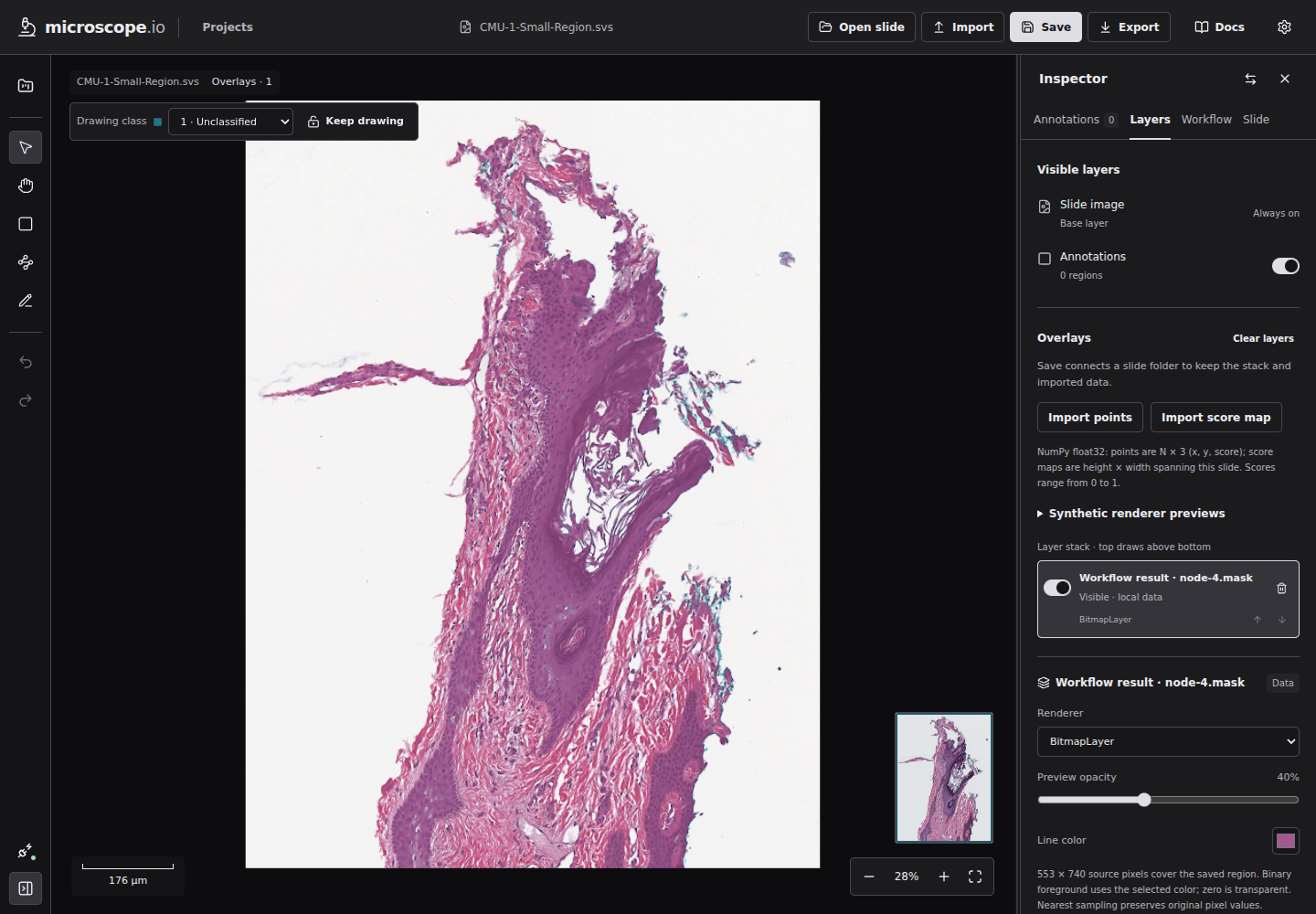
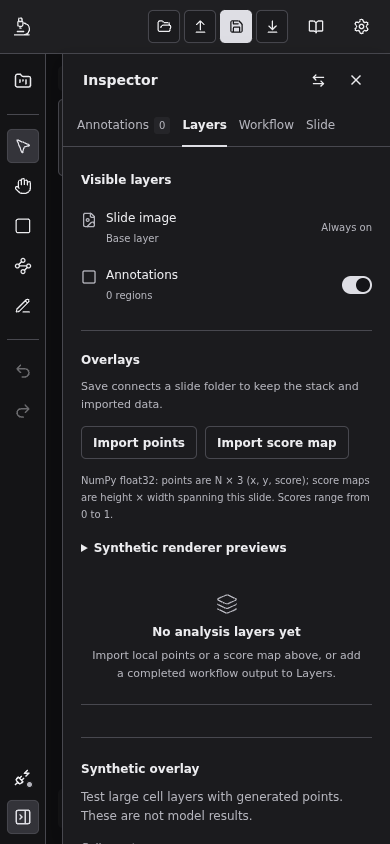
Open Layers in the inspector. Slide image is the fixed base layer; Annotations controls ROI visibility. Imported data and workflow results appear as separate overlays above the slide. Import points accepts a NumPy float32 array shaped N × 3 (x, y, score); Import score map accepts a float32 height × width array spanning the slide with scores from 0 to 1. The overlay inspector selects a renderer and exposes its opacity and relevant display controls. Overlays remain distinct from editable annotations.
With no analysis overlays, the Layers panel says No analysis layers yet and offers two recovery paths: import local points or a score map, or add a completed workflow output. The Synthetic renderer previews controls are collapsed initially and create labeled test data only. They are useful for checking rendering and large point sets; they are not analysis results. Layer visibility, order, opacity, selection, import, and removal are session state until a slide folder is connected and the workspace is saved. Export annotations exports ROIs only; imported overlay assets are not included in that export.
Save, export, and reopen work
For portable persistence, choose Save and grant access to the folder containing the slide. Microscope writes its .microscope sidecar next to the original image; it does not copy the WSI. Saved ROIs and imported overlay layers then autosave after committed edits (two seconds by default). Reopen the slide from that folder to load saved work. The folder grant is managed by the browser and can be remembered on that browser if you enable the setting.
The Projects button opens a collection in one folder. A project stores a slide roster and gives each slide a separate annotation namespace. Save project saves the roster; header Save saves the current slide annotations and overlays. Removing a slide from the roster does not delete its image or sidecar.
Without folder access, use Export before closing to download an annotation JSON file, and Import to load it later. This standalone export contains ROIs, not overlays. Import replaces the current annotation collection after a confirmation; use Undo immediately if you imported the wrong set. Select Docs in the header to open the documentation site in a new tab. To replay onboarding, open Settings from the gear button and choose Replay introduction; this leaves the existing consent choice unchanged.
Work with a project collection
Projects require a browser with local folder access. Select Projects in the header, then New, enter a project name, and choose the folder that contains the slide files. Select Add slides to add files in that project folder or its subfolders. Select a row to open its slide. Use the panel's Find a slide… field for a large roster. Locate can reconnect a missing file after it is moved. Remove changes only project membership; it does not delete the WSI or sidecar.
The project name and slide roster are saved in <name>.microscope-project.json in the chosen folder. Select Save project after adding/removing slides or changing the project name. Separately, the header's Save writes the active slide's annotations and layer stack beside that image. A project may contain no slides yet. Each project has its own annotation namespace; Copy Default annotations is an explicit action from the Annotations panel when you want to bring standalone annotations into that project. It does not remove the Default copy.
After reload, choose Projects → Open and select the containing folder to reconnect. If the browser does not offer folder access, project controls are unavailable; use standalone annotation Import/Export instead. See the project and annotation file contract before moving or editing sidecar files directly.
Viewer settings
Select Viewer settings (the gear in the header) to open Settings. Appearance offers Charcoal, Midnight, Graphite, Light, Paper, and System; the preference is local to this browser. If a slide folder is connected, Slide folder includes Autosave and Remember folder. Autosave starts after committed edits and can be disabled for manual saves. Remember folder stores a local browser handle/location hint; it does not move or copy slide files. The browser still controls renewed folder permission. When a save fails, Settings offers Retry save after the underlying access problem is fixed.
Settings also shows Community contribution. Its preference starts enabled, but that preference is not consent: collection remains off until the explicit first-visit disclosure has been accepted, and the deployment policy must also allow collection. Turn Allow contribution off to stop future collection. If the policy is unavailable or disabled, the viewer reports that collection is disabled. Builds without the contribution client show that contribution is unavailable and cannot send samples. When available, Review consent reopens the introduction from Settings.
About Microscope identifies the running application version, full Git commit, build date, and release channel. Use Copy version information when reporting a compatibility issue or confirming which source revision is deployed.
Common problems
| Symptom | What to check |
|---|---|
| The decoder fails before loading | Try the bundled example, check whether the file is a supported single-file brightfield WSI, and inspect the displayed error. Multi-file formats cannot be supplied through the current one-file picker. |
| Worker/WASM initialization fails | The viewer needs cross-origin isolation headers (COOP: same-origin, COEP: require-corp). Reload after opening it from its configured HTTPS host. |
| Slide opens but physical scale is unavailable | The source does not contain valid X-axis MPP metadata. Viewing and pixel-coordinate annotation still work; workflows that require physical calibration must report an error rather than infer it from objective power. |
| Save is not available or the browser rejects a folder picker | Use a supporting desktop browser and a secure context, or use Export and Import. Browser support determines whether folder access can persist. |
| The original slide has disappeared after reopening | Microscope stores a reference to the slide, not a slide copy. Reopen the original file. |
Learn more
- Annotation and project file format
- Overlay persistence and supported imported arrays
- First tissue-mask workflow
- Python interoperability
Source and example image
The bundled CMU sample is CMU-1-Small-Region.svs, from OpenSlide test data, licensed CC0-1.0. See public/examples/NOTICE.md for its source and checksum. The supported-format descriptions above are from the pinned openslide-js reader's format table; the one-file limitation comes from the viewer's actual file input.