Appearance
Create your first tissue mask
This tutorial makes a simple dark-pixel mask from a bounded WSI region with three nodes:
text
WSI Region → Grayscale → ThresholdIt is an image-processing demonstration, not a clinically validated tissue classifier. It runs on a selected browser-captured region or viewport, and does not silently process an entire WSI at native resolution.
What you need
- Microscope viewer in a supported, cross-origin-isolated browser.
- A local Python environment running the
microscopecompanion with itsworkflowsextra. - The official OpenCV node pack installed in its own Python environment and registered with the companion.
- A single-file brightfield slide whose measured X/Y MPP metadata is present if you want a physical working resolution.
The browser opens and reads the WSI. The companion executes Python after you pair this viewer origin. OpenSlide and OpenCV are local; the slide is not sent to a hosted service by this workflow.
1. Install and register OpenCV
Use separate environments for the SDK companion and node pack. From the microscope-python checkout:
sh
python3 -m venv .venv
. .venv/bin/activate
python -m pip install -e '.[workflows]'
From the microscope-nodes-opencv checkout, create the pack environment and install its declared NumPy/OpenCV dependencies:
sh
python3 -m venv .venv
.venv/bin/python -m pip install -e .
Register the local checkout with the companion SDK environment (replace paths with absolute paths):
sh
/path/to/microscope-python/.venv/bin/microscope nodes register \
  /path/to/microscope-nodes-opencv \
  --python /path/to/microscope-nodes-opencv/.venv/bin/python --trust
This command registers the checkout and interpreter; it does not install or update the pack's dependencies. --trust authorizes the companion to import that node pack. Read its code and dependency files first. Restart the companion after CLI registration so it reloads the local registry.
2. Start and pair the companion
In the SDK environment, run the companion. For a local viewer at the default Vite port, allow that exact origin:
sh
/path/to/microscope-python/.venv/bin/microscope serve \
  --origin http://localhost:5173
For a viewer hosted at another HTTPS origin, replace the origin with the exact value shown in the address bar. Do not add a wildcard origin. In the viewer, open the Workflow tab. Enter the short-lived pairing code shown by the companion and grant the browser's local-network permission if requested. The companion binds to loopback; the paired viewer can execute Python with the workstation user's permissions.
If the viewer runs at a non-default port or hostname, that exact origin must be configured with --origin. After registration, restart the companion and reconnect or refresh the node library. A browser-only viewer can open, inspect, and annotate slides without this setup; only workflow execution requires Python.
3. Open a slide and add the graph
Open a local slide, then in Workflow choose Open workflow. Either add the nodes from the searchable library, or use Load workflow JSON and load the downloadable example graph.
The example contains these stable node types:
| Node | Input → output | Settings |
|---|---|---|
WSI Region (microscope.source) | no input → image | Choose viewport, roi, rectangle, overview, or whole_slide; set Working MPP for the source sampling resolution. |
Grayscale (microscope_opencv.grayscale) | image → gray | No parameters. Converts RGB to an 8-bit grayscale image. |
Threshold (microscope_opencv.threshold) | gray → mask | Threshold is 0–255; Select darker pixels is on by default; Use Otsu threshold is off by default. |
Connect the filled circular output port from WSI Region to Grayscale's image input, then Grayscale's gray output to Threshold's gray input. The typed image → gray → mask chain is valid: the visible type labels help distinguish compatible connections, and incompatible types cannot be connected. If the graph shows a missing node, install and register the OpenCV pack, restart the companion, then refresh the library. Search the node name, operation description, category, or pack name in the Node library; clear the search if there are no matches.
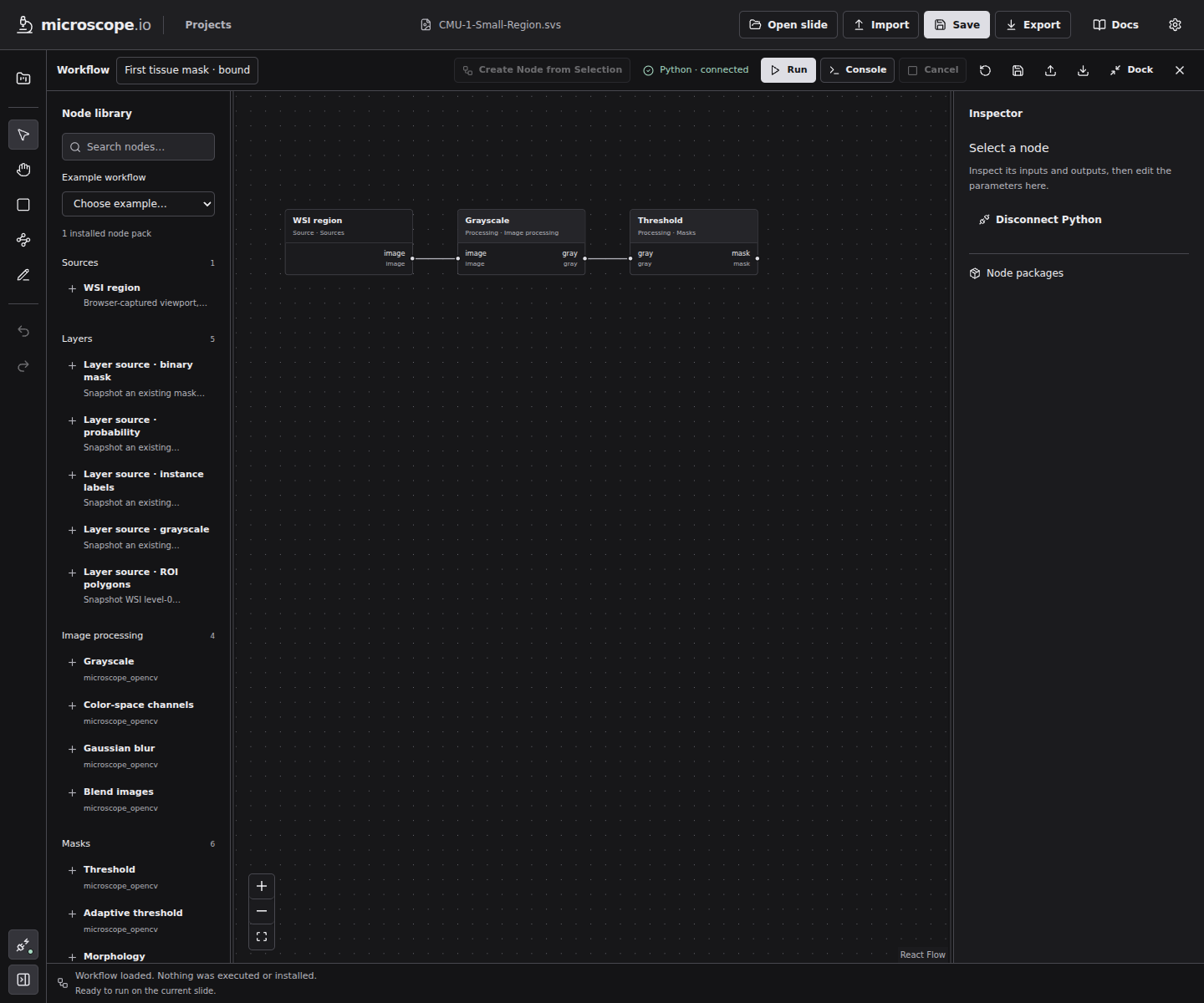
Select the WSI Region node. For an initial run, viewport captures the visible view. rectangle captures the explicit level-0 bounds in the source node; roi uses the bounding rectangle of the selected annotation. Set Working MPP to a value no finer than the measured native MPP on either axis. The included sample graph starts at 2 µm/px; if creating the graph manually, use Fit slide first and a coarser value such as 4 µm/px. A smaller MPP requests finer sampling and is bounded by native pixel spacing; it is rejected if it asks for resolution finer than the source.
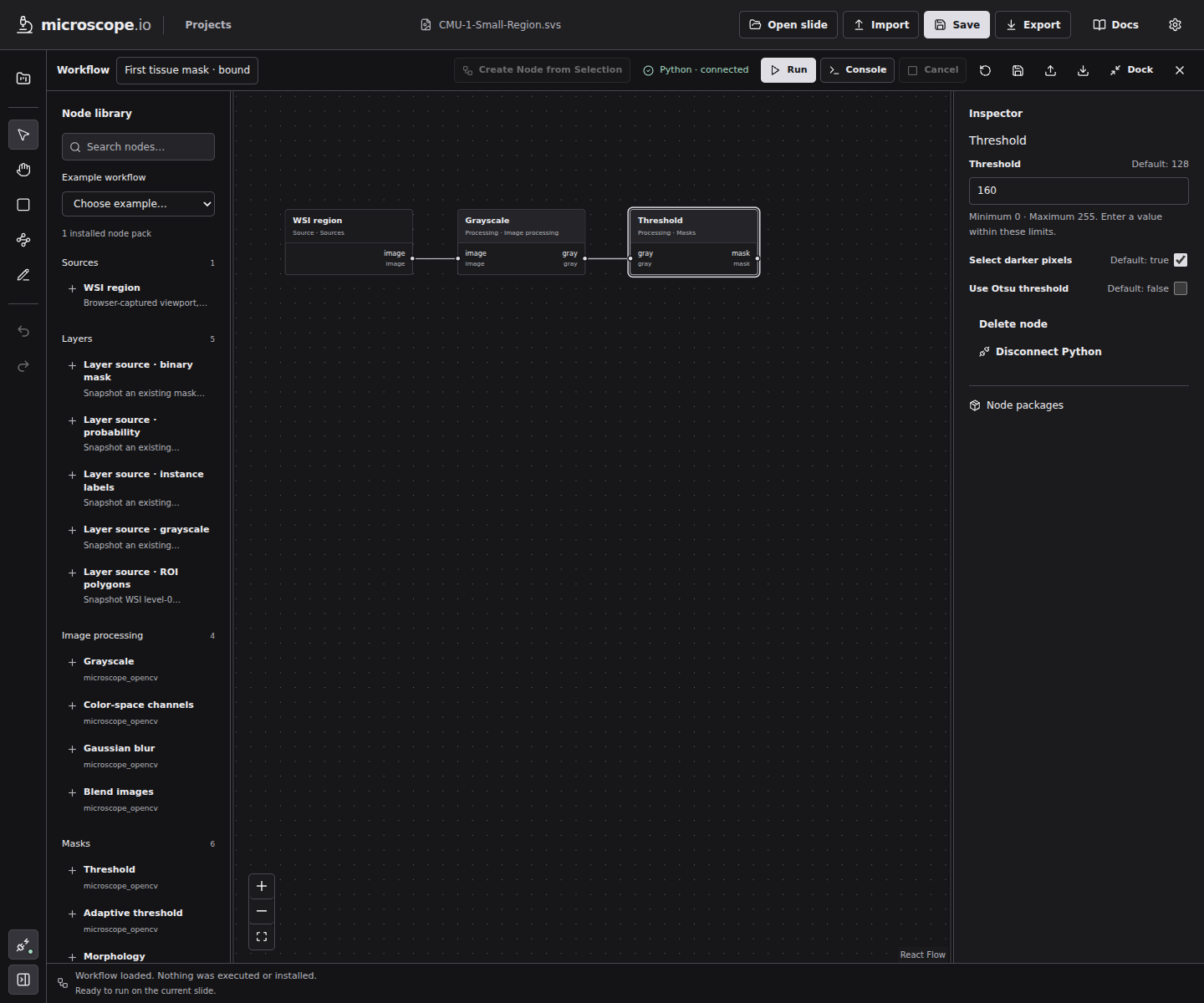
Select Threshold and adjust Threshold in the inspector. Its default, description, and allowed minimum/maximum are shown with the field. 160 is a starting value for this example, not a universal stain cutoff. An incomplete or out-of-range numeric edit stays visible as invalid and does not replace the last valid graph value; correct it before running. Leave Use Otsu threshold off for whole-slide tiled execution; Otsu needs a region-wide histogram and is not compatible with tile-local fixed-threshold batches. Choose whether dark or bright pixels should be marked using Select darker pixels.
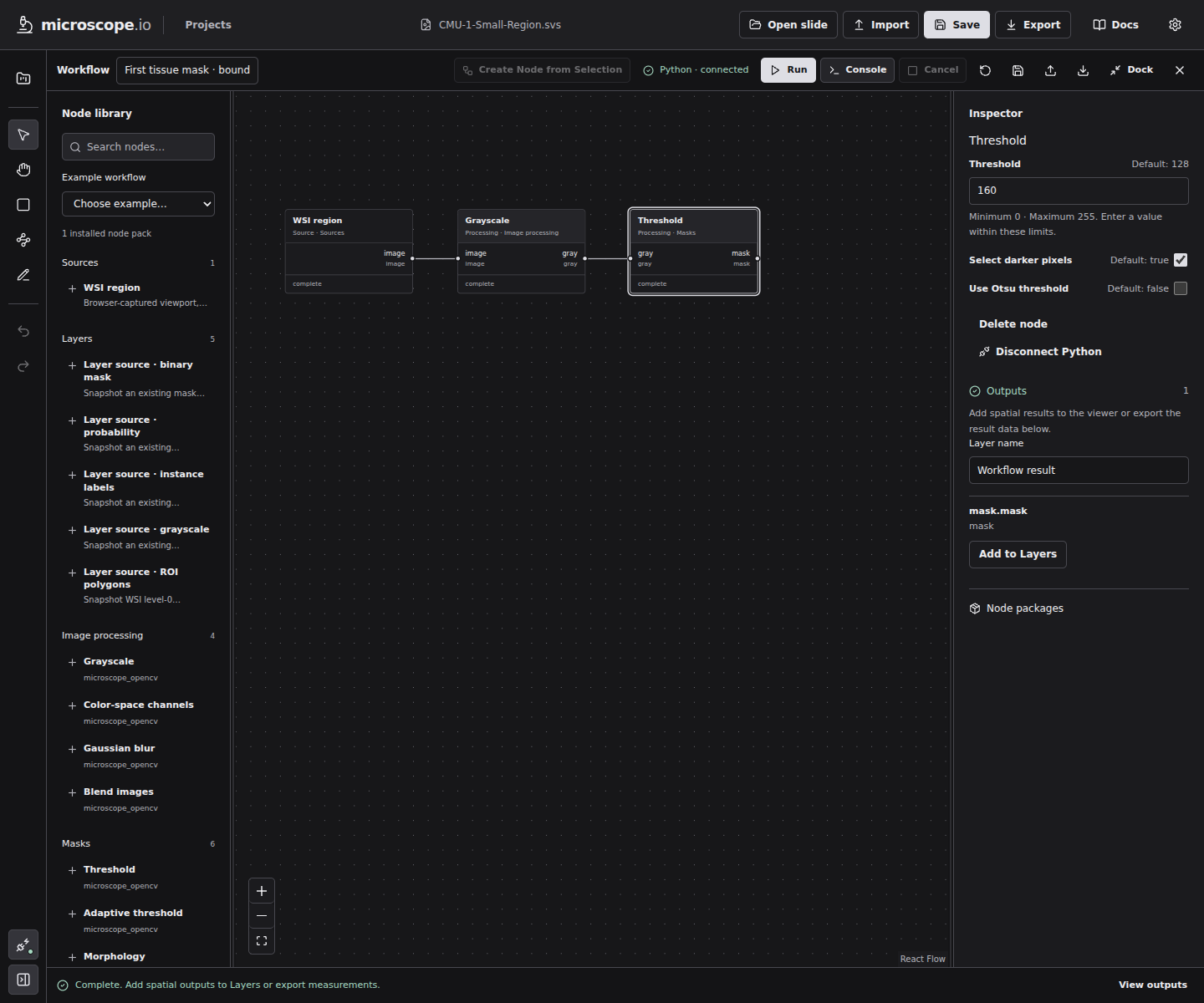
4. Run, inspect, and save the result
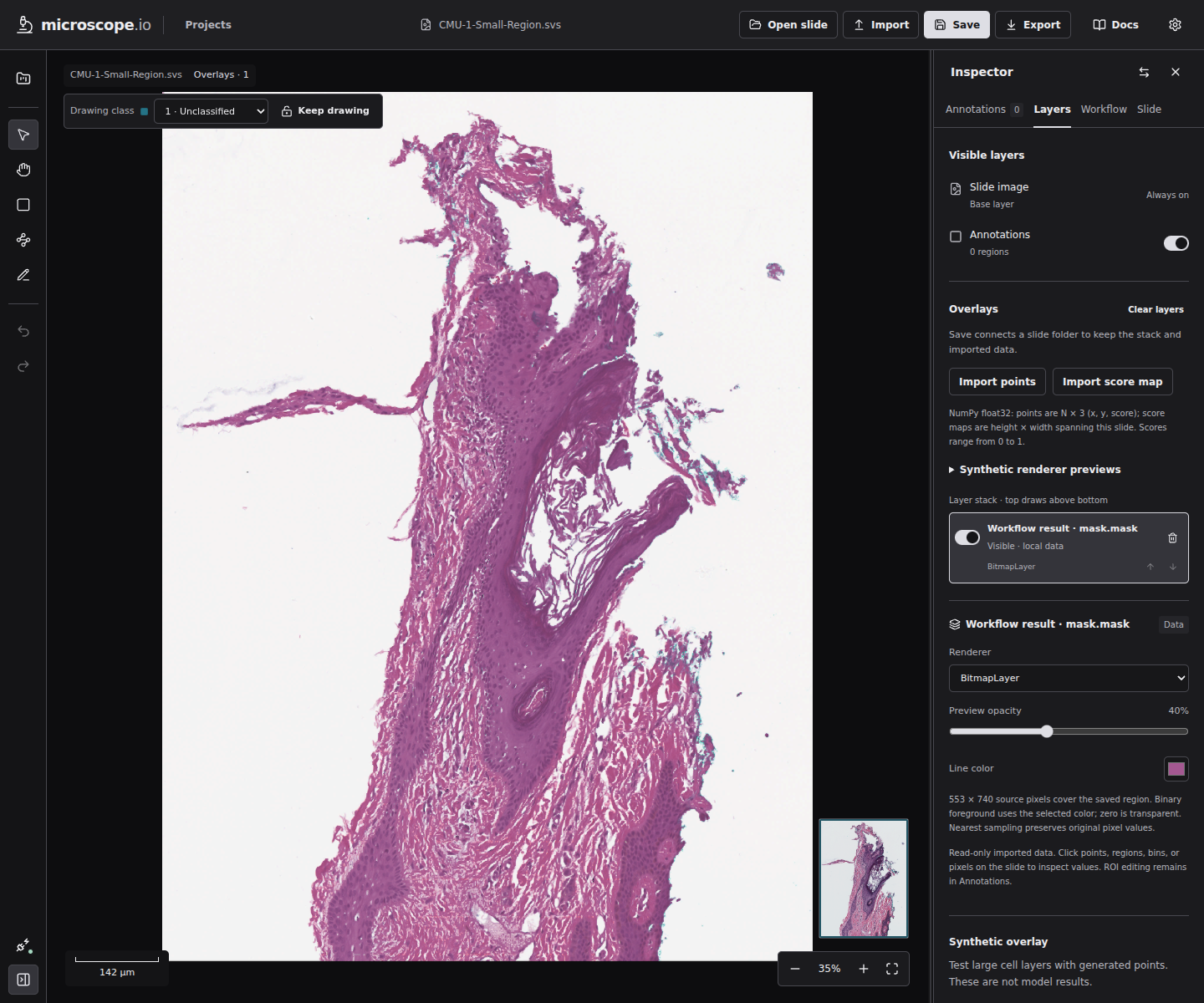
Choose Run. The status line explains blockers such as a missing slide, disconnected Python, unavailable node definitions, or required inputs that need connections. During execution, nodes show their state and the console reports node progress and local Python logs. If execution fails, choose Open Console, review the error and node parameters, then run again. When Threshold finishes, choose View outputs, then Add to Layers for its mask. The mask appears as a raster layer in the viewer's Layers inspector; use the layer visibility and opacity controls alongside the source WSI. In the same browser, Save with access to the slide folder to persist the result with that slide workspace.
Use Save in the workflow dock for a browser-local draft. Choose Export workflow JSON to create a portable JSON file; choose Import workflow JSON later to reopen it. The JSON contains the graph and scientific parameters, not the WSI pixels, runtime input IDs, or output arrays. Loading a workflow does not execute it or install a pack.
The sample workflow JSON included here is a valid portable graph template but intentionally starts at viewport, the current source region. To process a different scope, select the source node and change its scope/settings in the viewer; runtime source IDs are session values and should not be copied into a shared workflow.
Scope and resolution: what this run actually analyzes
The browser reads a bounded image from the open WSI, resamples it to the requested MPP, and sends only that array plus geometry to the paired local companion. A viewport run changes scope as you pan/zoom. An ROI run reads the ROI's bounding rectangle, not a per-pixel crop of its polygon interior. An explicit rectangle is in level-0 pixel coordinates. An overview is one bounded coarse image. A whole_slide scope is only available when every processing node declares tile-local execution and the source has actual X/Y MPP metadata; the viewer then makes bounded 1024-pixel tile inputs. For this three-node fixed-threshold graph, use the explicit tile-compatible fixed threshold setting only if you intentionally configure whole-slide mode and accept its bounded output and biological seam limitations. This tutorial demonstrates a region, not full-slide native processing.
Troubleshooting
| Problem | Cause and next step |
|---|---|
microscope_opencv.* nodes are absent | Register the pack into the SDK runtime using microscope nodes register, restart microscope serve, then reconnect/refresh. |
| Browser says companion unavailable | Confirm the process is running, use its exact permitted --origin, check browser local-network permission and workstation firewall, then enter a fresh pairing code. |
| Source region is invalid or too large | Fit/zoom to a smaller viewport or use a bounded rectangle; this workflow interface caps an RGB source at 4,194,304 pixels. |
| Physical calibration is missing | OpenSlide did not provide positive X/Y MPP. The viewer will not infer calibration from objective power; use a calibrated slide or choose a workflow that does not require a physical resolution. |
| Fixed threshold selects the wrong pixels | Inspect grayscale intensity and adjust the 0–255 threshold or invert setting. Stain, illumination, scanner, and working resolution affect this simple heuristic. |
| Tiled run refuses Otsu | Disable Otsu and use a fixed threshold; Otsu depends on the full region histogram. |
| Result is not saved after reload | Add the output to Layers, connect the slide folder with Save, and check that the active project/slide directory remains writable. Workflow JSON does not embed result pixels. |
Next steps
- Companion setup and trust boundary.
- Generated node schemas — authoritative parameter bounds and ports for installed nodes.
- OpenCV pack guide — morphology, components, ROI conversion, and additional image operations.
- Custom Python node tutorial.